TL;DR (Quick Start)
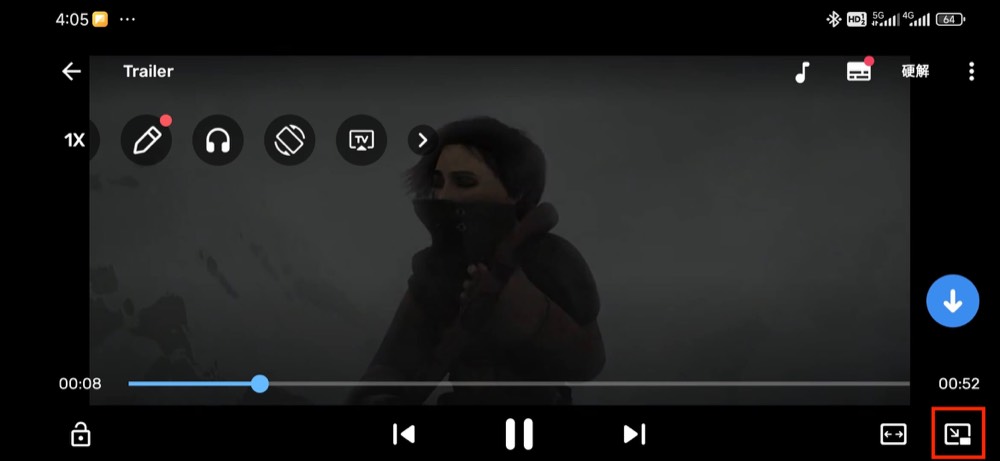
- Use Case: You want to continue watching web videos in “picture-in-picture (PiP)” mode while browsing.
- Core Concept: Use X Browser to sniff video URLs -> Call a PiP-capable player (like MX Player) to play.
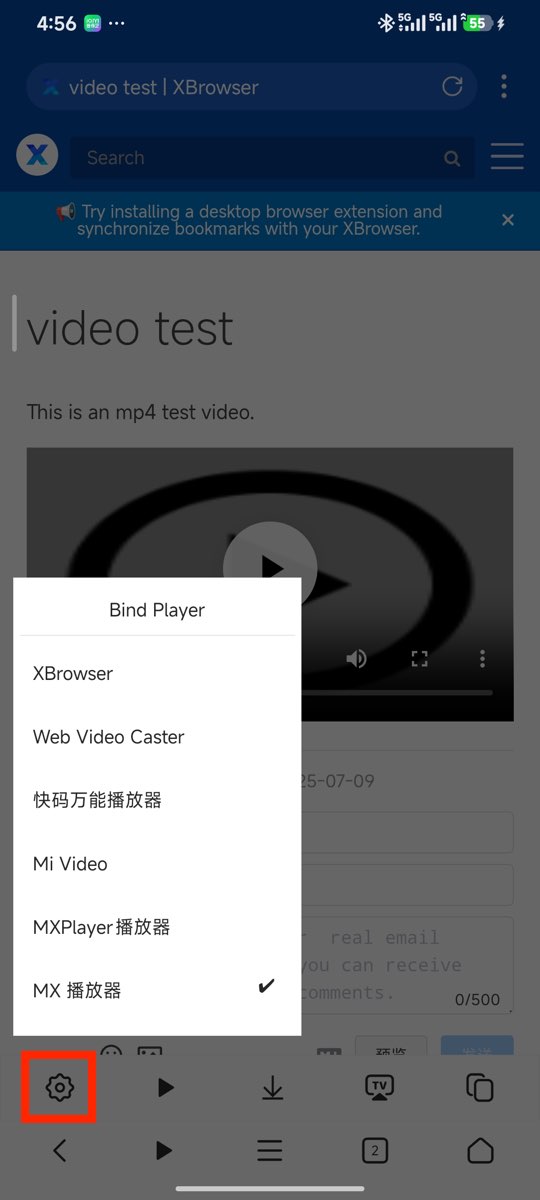
- Key Setting: Bind MX Player as the default player for sniffed playback.
This article explains how to achieve picture-in-picture video playback using X Browser + MX Player. MX Player is an excellent video player for Android that supports picture-in-picture mode. Below we’ll show you how to use X Browser’s video sniffing feature with MX Player to play videos in a floating window.
1. Install MX Player
You can search for “MX Player” in your app store, or search online for “MX Player” to download and install. This tutorial uses MX Player version 1.8.2.76, with package name: com.mxtech.videoplayer.ad.
2. Sniff Video Resources from Web Pages
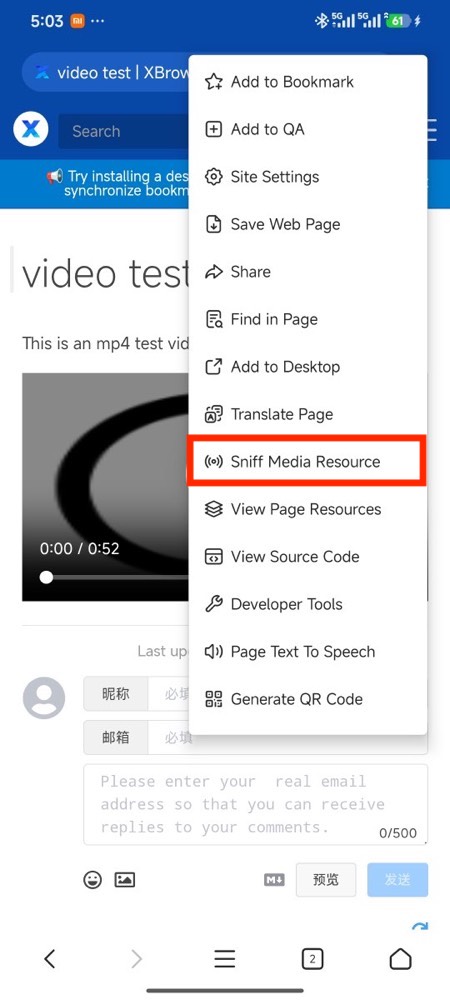
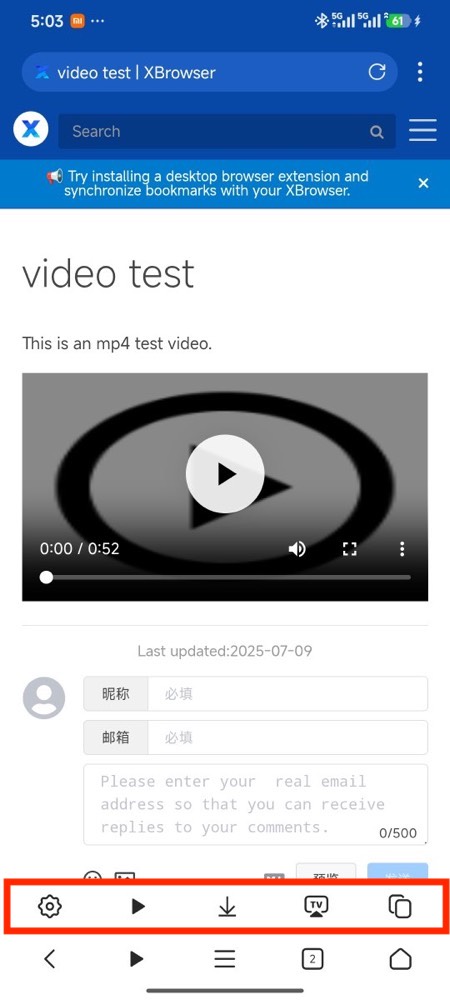
X Browser supports sniffing video resources from web pages. You need to open the video webpage you want to play in X Browser, then use the “Sniff Media Resources” option in the toolbox to sniff video resources on the current page. Here is a test page you can use to test the video sniffing feature.
You can also install the Auto Sniff Script to automatically sniff media resources on pages.
3. Bind MX Player as Default Player
Click the settings button on the right side of the sniffing toolbar to bind MX Player as the default player.
4. Call MX Player to Play Video
Click the play button in the sniffing toolbar to call MX Player to play the video. Now you can use MX Player’s picture-in-picture mode to play videos from web pages.
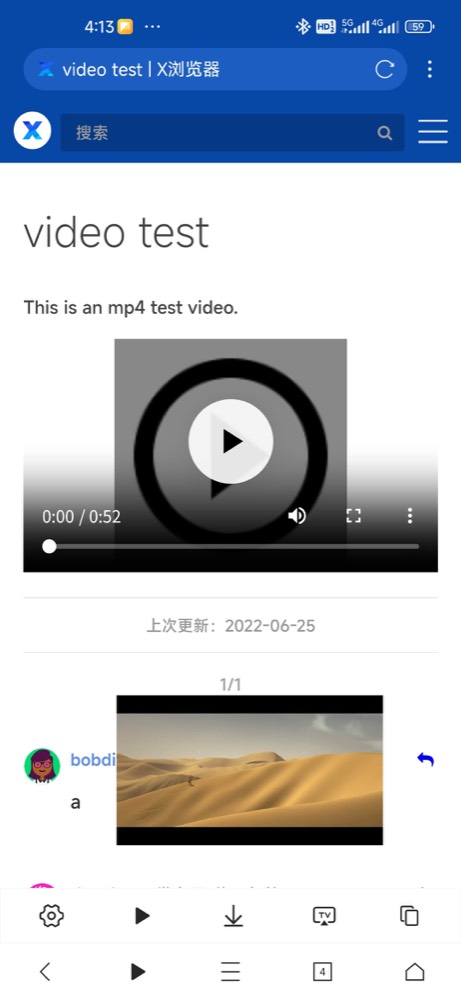
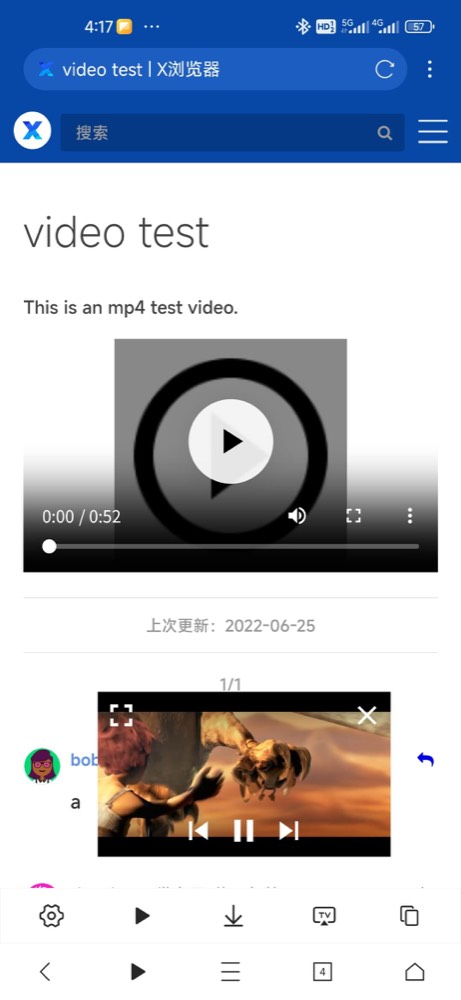
FAQ (Troubleshooting)
- Cannot sniff video resources: The webpage may use encryption/segmented playback schemes, or resources may not be loaded in a conventional way. You can first verify the sniffing function works properly using the test page mentioned in the article.
- No player selection popup/MX Player not called: Please check if MX Player has been set as the default player in step 3, or reselect it in the sniffing settings.
- MX Player has no picture-in-picture option: Please confirm the player version supports picture-in-picture, and allow “picture-in-picture/floating window” permission in system settings (the entry name may vary slightly across different systems).